Turn a tablet you already own into a family calendar display
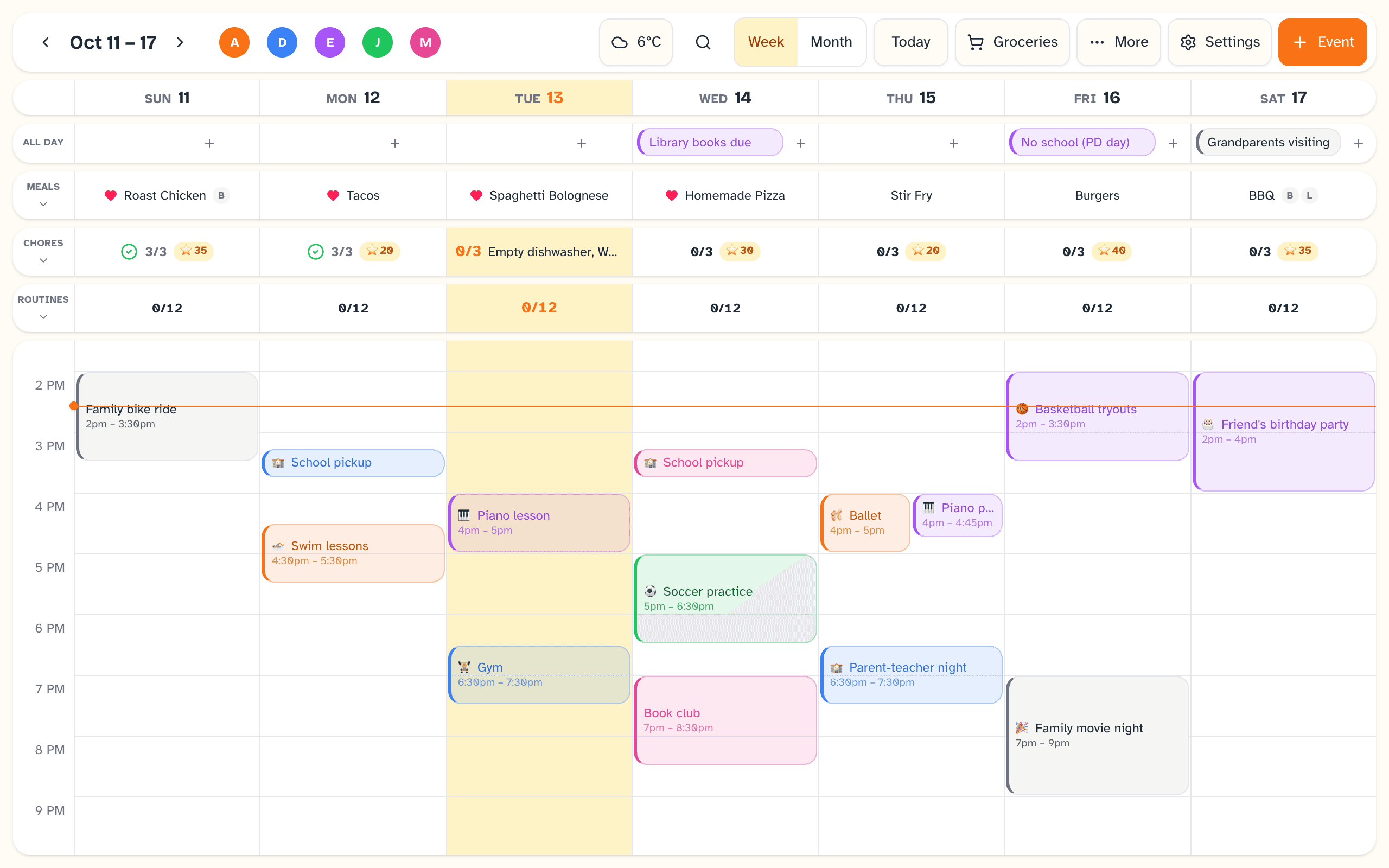
An old iPad or Android tablet on the counter, showing the week, tonight's dinner and whose turn it is to feed the dog. Here is how to set one up, and where Daybreak stops and the tablet's own settings take over.
What you need
Daybreak runs in the browser, so the family calendar display is a tablet you already have with Daybreak open on it, joined as a wall display. There is no dedicated screen to buy and nothing to install from an app store.
- A tablet with a current web browser: an iPad or an Android tablet
- Somewhere to stand or mount it, near a charger
- A Daybreak family, which the free trial gives you
Set up Daybreak on the tablet
These steps are Daybreak's own. Have a phone or computer that is already signed in next to you; the pairing code only lasts a few minutes.
Open Daybreak on the tablet and add it to the home screen
In the tablet's browser, go to app.daybreakplanner.net. Then add it to the home screen (how is below, under iPad and Android). Opened from that icon, Daybreak runs full-screen like an app, without the browser's address bar. Do this first, and do the next steps from the icon: on an iPad, a sign-in done in Safari may not carry over to the home-screen icon.
On your phone, choose the wall display option
On a phone or computer that's already signed in, open Daybreak, go to Settings, find Devices and press “Add a person or device”, then “A wall or kitchen display”. A 10-digit code appears in large type with a countdown, so you can read it out. It works for 5 minutes; if it runs out, make a new one.
Join with the code on the tablet
On the tablet's sign-in screen choose “Join with a pairing code”, type the 10 digits and press Join. The tablet is now a wall display for your family, with no email to type and no inbox to check on a shared screen.
Answer the setup sheet
The first time a wall display loads, Daybreak shows a short setup sheet on the tablet. Choose whether the photo screensaver runs and whether it starts after 1, 2 or 5 minutes. Where the tablet's browser supports it, tick “Keep the screen awake”; where it doesn't, the sheet says so. Some browsers also offer a “Go full screen” button. These choices belong to that tablet only. To see the sheet again, open Settings on the tablet, find Devices and press “Display setup”.
Add photos and reminders from your phone
A wall display shows your family's photos but can't add them, so upload them from a phone or computer: Settings, then Screensaver, then Manage Photos. Reminders are off until you turn them on, also from a phone or computer: in Settings, under Reminders, set “Remind before” and a full-screen reminder will appear ahead of events and chores on every device that has Daybreak open, including the tablet while it's showing photos. That setting is for the whole family.
Make it suit a shared screen
Three more settings on the tablet are worth a look. Under Appearance, the theme can be light, dark, or automatic by time of day, and the calendar view can be fixed to the week grid. Under Security, a 4-digit PIN lock stops anyone opening Settings on that device without it.
Settings on your own phone or computer lists every device signed in to your family, with when each was last seen and a label on the wall displays. If a tablet leaves the house, revoke it from there. More on the photo screensaver and the family calendar.
Safe to leave where children can reach it
A tablet joined as a wall display is signed in for day-to-day use only. It cannot change billing, remove family members or sign out other devices, whatever is tapped on it. The only device it can sign out is itself.
What a wall display can do
- Show the calendar, and add or edit events
- Tick off chores and routines
- Use the grocery list and the other shared lists
- Plan meals and open recipes
- Use the whiteboard
- Show the photo screensaver and on-screen reminders
What it can't do
- Open billing or change the subscription
- Add, edit or remove family members, or change family settings
- Connect or disconnect a calendar
- Upload or delete photos
- Add devices, see the device list, or sign other devices out
- Change two-factor sign-in
- Export the family's data or delete the family
iPad and Android settings that help
These are general tips for the tablet itself, not features of Daybreak. Menu names move around between versions and manufacturers, so yours may be worded a little differently.
Add Daybreak to the home screen
This is the browser's feature, and it is how Daybreak installs today: there is no app-store app yet.
- iPad
- In Safari, tap the Share button, then “Add to Home Screen”.
- Android tablet
- In Chrome, open the menu (the three dots), then “Add to Home screen” or “Install app”.
Keep the screen awake
A wall display asks the browser to keep the screen on, and the setup sheet tells you if the tablet's browser can't do that. If it can't, or the screen still dims, use the tablet's own display setting. Either way, keep the tablet plugged in if the screen is going to stay on.
- iPad
- Settings, then Display & Brightness, then Auto-Lock, then Never.
- Android tablet
- Settings, then Display, then Screen timeout, and pick the longest option. Many Android tablets stop at 30 minutes; some have a “stay awake while charging” option under Developer options.
Keep it on the calendar
To stop a tablet wandering off to other apps, lock it to one app with the feature built into the tablet.
- iPad
- Guided Access, under Settings, then Accessibility. Turn it on, open Daybreak, then triple-click the top button (or the Home button) to start it.
- Android tablet
- App pinning (called screen pinning on some tablets), usually under Settings, then Security. Turn it on, open Daybreak, then pin it from the recent-apps screen.
Being straight with you
What a Daybreak kitchen display doesn't do
- Daybreak is software. It doesn't come with a screen, a stand, a mount or a charger.
- Daybreak keeps a wall display's screen awake only where the tablet's browser supports it, and only while Daybreak is the page showing. It does not lock the tablet to itself. The tablet's own settings for both are described above.
- A very old tablet may not work. Daybreak needs a current web browser, and a tablet that can no longer update its browser may not run it.
- The month view is an overview of events. Meals, chores and routines show in the week.
- Reminders appear on screens that have Daybreak open. Push notifications to a phone are not available yet.
Tomorrow morning can start like this.
Daybreak is live. Set it up tonight on the devices you already own — the whole family wakes up on the same page.
No credit card to start. $9.99 CAD/month after your trial — cancel anytime.